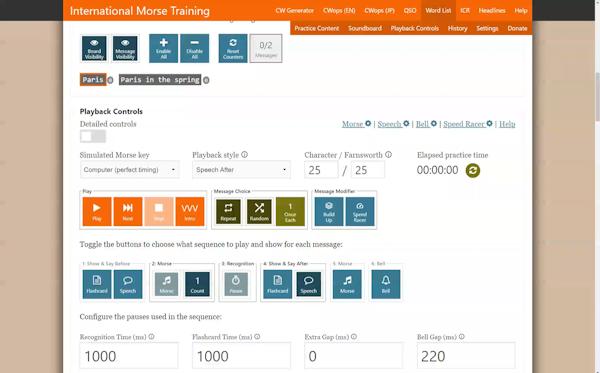
Most of the tools follow the same pattern: select the content you want to practise (whether characters, words, QSO, headlines, etc) then set up the Playback Controls to play the content in the style that you want. The playback controls are complicated though!
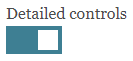
The Playback Controls interface can be toggled between a detailed view with lots of additional help and embedded timing controls, or a summary view for when you know what you want. The view is changed using the “Show detailed controls” toggle:
Playback Style
To make things simpler, some preset “Playback styles” are included.
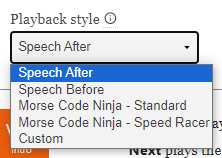
The sequence for each is as follows:
- Speech after: play Morse once, speak the message
- Speech before: speak the message, play Morse once
- Morse Code Ninja – Standard: play Morse twice, speak the message, play the Morse again, bell sound
- Morse Code Ninja – Speed Racer: play Morse four times (gradually descreasing the character speed), speak the message, play the Morse again (at top speed), bell sound
- LICW OverLearn Flow Rate 1: designed for the LICW OverLearn curriculum, 27 WPM
- LICW OverLearn Flow Rate 2: designed for the LICW OverLearn curriculum, 31 WPM
All the preset styles turn on “Repeat” so that you get a continuous stream of messages. The two “Morse Code Ninja” styles copy the style of the superb pre-recorded resources available on the Morse Code Ninja website.
Message Modifiers
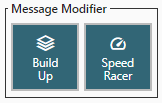
Some tools have one or two optional “message modifiers” which can be used to modify the Morse that you will hear in step 2 of the playback sequence. The modifiers are “Build Up” and “Speed Racer”.
More information on these can be found below.
Build Up
The “Build Up” modifier was suggested by Glenn, W4YES. It works differently depending on whether the message is a word or phrase:
- A word will be built up letter by letter, so NICE is played as N NI NIC NICE.
- A phrase will be built up word by word, so UP WE GO is played as UP UP WE UP WE GO
Click on the tiles to listen; the Sound Controls set the speed and pitch they play at.
Speed Racer
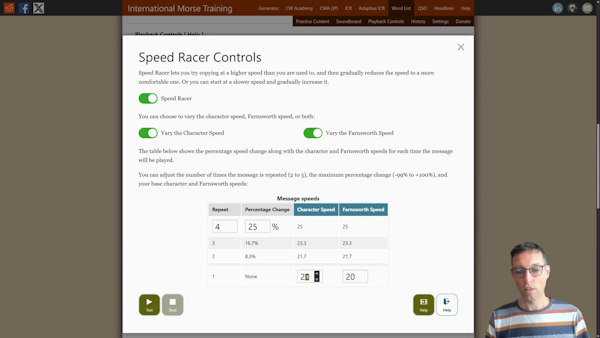
The “Speed Racer” modifier is based on the Morse Code Ninja material of the same name. By default it boosts the initial speed by 50% and then repeats the message, stepping down the speed a few times to your chosen values. The Morse Repeat (in step 5) will play at the modified speed if it is selected. There are many options related to the Speed Racer modifier and these are found in the Speed Racer control pop-up. You can choose there whether to vary the character and/or Farnsworth speeds, how much to vary them by, and how many times to play the message. If you want to, by using a negative percentage, you can even reverse the order so that the message starts slow and speeds up!
Playback Sequence
For each “message” that is played (e.g. QSO, headline, word, phrase), the sequence defined by six numbered stages is followed. Adjusting the settings lets you choose what you hear and see for each message.

- Show & Say Before: the Flashcard and Speech buttons let you have the message spoken and/or see a flashcard before you hear the Morse. You can choose the (minimum) duration of the flashcard with the Flashcard Time setting.
- Morse: this one is mandatory! The message will be played in Morse code using the Morse Controls settings (for sound, light, vibration and timing). Note: it is only in this part that the timing set in “Morse Controls” has any effect. Use Count to choose how many times it plays (1 to 5) or have it repeat until you press the Next button.
- Recognition: you are able to choose how long you need to recognise the Morse you have heard before moving on: the Recognition Time. The button cannot be deactivated: instead set the Recognition Time to zero.
- Show and Say After: just the same as step #1 but occurs after the Morse.
- Morse: if you want a reminder (now you know what it is) then enable this.
- Bell: turn the bell on to clearly indicate that the sequence for that word is finshed and that you should get ready for the next one.
Pauses that follow the speed
The four pauses in the sequence — Recognition Time, Flashcard Time, Extra Gap and Bell Gap — are normally a number of milliseconds, so they stay the same however fast the Morse is. Give one a unit instead and it is measured in Morse code rather than in time, so it keeps its proportion when you change speed:
5dit: 5 dit lengths at the character speed.3fdit: 3 Farnsworth dit lengths — the same as the gap between two characters.1ws: 1 word space — the same as the gap between two words.
A space before the unit is fine: 5 dit is the same as 5dit.
The number of milliseconds the pause currently comes to is shown next to the setting. These are the tag format pause units, without the square brackets. A Extra Gap given this way also follows the Speed Racer speeds: the gap after each repeat matches the speed that repeat was played at.