Shared Features
The Word List Trainer shares a number of features with the other tools. Please see the following pages for more information:
- Morse Controls (Timing) — character speed, Farnsworth speed and pitch.
- Playback Controls — the six-stage playback sequence.
- Settings Import/Export — saving, loading and sharing your settings, and how to write your own settings links.
- Tag Format — changing timing and pitch within a single message.
Practice Content
Ready-Made Lists
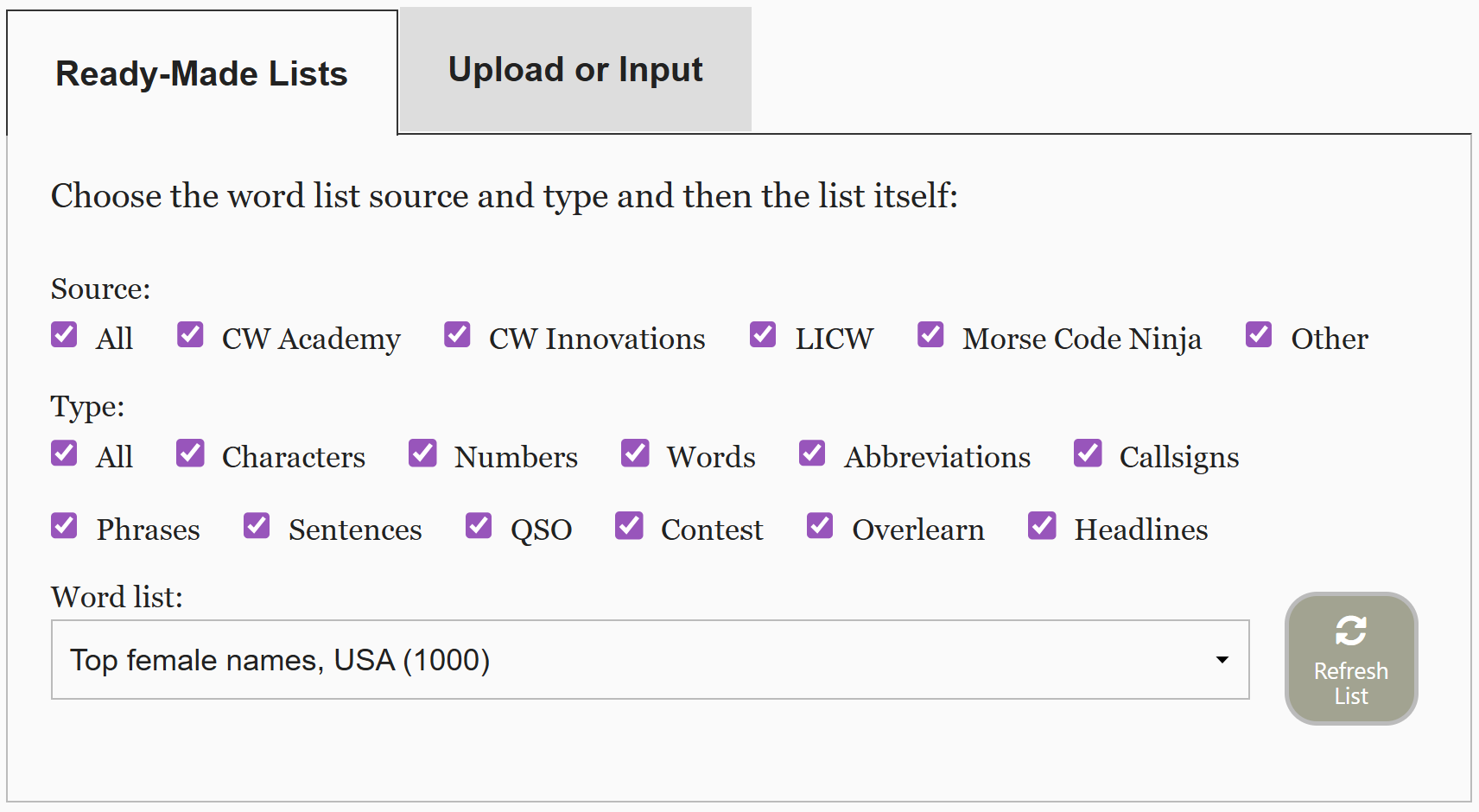
There are over 180 word-lists provided for you to practise. You can just choose one from the drop-down list and it will be loaded. To help find the content you need, you can choose which source(s) and content type(s) to show by selecting/deselecting some of the checkboxes.
Upload or Input: Custom Word Lists
As well as choosing from the ready-made word lists, you can upload, type, drag & drop, or paste in your own lists using the “Upload or Input” tab of the “Practice Content” area (see screenshot below).
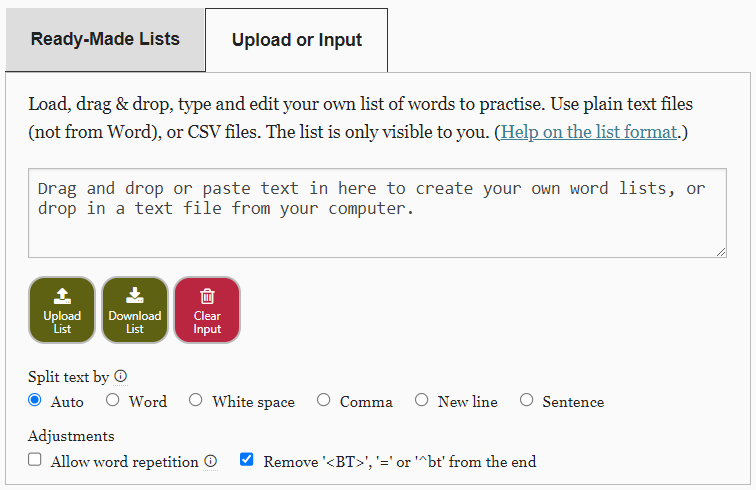
The software needs to know how to extract “words” (or messages) from the input, so the “Split text by” option lets this be defined:
- Auto: guess how to split the input file
- Word: extracts words and removes most punctuation
- Whitespace: splits the input at all whitespace characters (new lines included)
- Comma: splits the input at commas (including surrounding spaces)
- New line: splits at any combination of new-line characters
- Sentence: splits after a period (full-stop)
There are then two “Adjustments” that can be made to the interpretation of the input.
- The option “Remove line endings ('<BT>', '=', '^bt')” is useful if you are uploading a word list prepared for other software where each line of the file is a word/message and the lines end with one of “<BT>”, “=” or “^bt”. With the option checked, any of these will be ignored.
- The second set of options allow control over the punctuation in the messages, removing all, some, or none of it from the input text.
Defining Morse, Speech, Display and Repeat
A powerful feature of the software is that you can define the following four things separately:
- the message to play in Morse code (sequence step 2);
- what should be spoken;
- what should be displayed (in the tile and flashcard); and
- the message to play if the Morse repeat option (sequence step 5) is activated
This ability is used in the ready-made “USA state abbreviations” list where the first line (for example) is {AK|alaska}. This means play and display “AK” but speak “alaska” (if speech is selected). The format options are:
{text|speech}: text will be used for display, the Morse code, and the Morse repeat. speech will be used for speech{text|speech|display}: text will be used for the Morse code, and the Morse repeat. speech and display will be used for the speech and display{text|speech|display|repeat}: text will be used only for the Morse code (sequence step 2) with speech, display and repeat being used for the speech, display and repeat respectively
This extended format can be combined with the tag format, for example:
{[t+50%]hello[t+25%]hello[t]hello|hello|hello|[t+50%]hello}would play the Morse for “hello” in sequence step 2 three times (50% faster, 25% faster, then at the user’s speed), would say and display “hello”, and would play “hello” in Morse 50% faster than the user’s settings in sequence step 5.{[t+50%]hello[t+25%]hello[t]hello|hello|hello|[t+50%]hello}would play the Morse for “hello” in sequence step 2 three times (50% faster, 25% faster, then at the user’s speed), would say and display “hello”, and would play “hello” in Morse 50% faster than the user’s settings in sequence step 5.
Defining what is displayed separately to the Morse can help in some cases, such as:
{KEF FSK JE GY KN|hello|안녕하세요.}would play the Korean (SKATS) Morse for “hello”, say “hello” (in English), and display the Korean “안녕하세요.”
Optional Message Filters
To help you focus in on what you want to practise, such as your problem characters, there are a range on filters which pick out a subset of the messages from the chosen list:
- Characters that you know: the idea here is to input all the characters that you know - messages including other characters will not be included in the soundboard;
- Characters that you want to practise: only messages including one or more of these characters will be included in the soundboard;
- Message length: choose the range of the length of messages to include;
- Only messages with double letters: as double letters can be tricky, this filter will pick out just those messages;
- Sometimes the input text may include the same word more than once (particularly if you paste in a story or article). If “Allow word repetition” is not ticked then each word from the input will only be shown once in the soundboard. If it is ticked then words will appear in the soundboard potentially multiple times, reflecting their occurrence in the input text.
Play Options
The “Play Options” controls in the Word List Trainer are more complex than the other tools. They change how and when the next message/word from the chosen list is played.
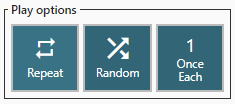
- Repeat: cycles through no repeat / continously play new messages / repeat the current message.
- Random: rather than playing the messages in list-order, choose the next one randomly.
- Once each: when the message is chosen then with Once each set, only messages that have not been played will be chosen.
Selecting all three buttons will mean that all messages will be played once in random order.